Showing posts with label windows template studio. Show all posts

Sunday, September 15, 2019

Quick Tip - Hot Fix Update for Windows Template Studio Now Available

Hello, fellow Windows devs. I will be back with some fresh UWP developer tips soon! In the meantime, here is a quick tip if you use Windows Template Studio and have the Visual Studio 2019 Preview installed on your machine.

Last week, Windows Template Studio version 3.4.19254.01 was released to address two issues specific to the VS2019 Preview.

  • Issue #3295 - Relates to adding an MVVM Light app to a Windows Template Studio project.
  • Issue #3309 - An error occurs when generating a project with the default selections.

There are no workarounds listed for either issue. Although both are specific to VS2019 Preview and seem to be limited in the scope of their problems, I like to patch my dev software as fixes become available. You can install this update whether you're running WTS with VS2017 or VS2019 Release/Preview.

You can either get the VSIX for the release here or if you have Windows Template Studio installed, open the Visual Studio Extensions dialog and check for updates. The source code for the release is also available for download if you want to have a peek under the hood.

Happy coding!


Friday, November 2, 2018

Windows Developer Resource Roundup - November 2018 Edition

I typically leave the link blogging over on the Morning Dew, but I thought my readers here might appreciate a post with a rundown of useful resources for Windows developers.

GitHub Repositories

We'll start off with some GitHub repos that I have starred. The organizations behind each repo are listed in parentheses.

Windows UI Library (Microsoft) - These are the Microsoft UWP XAML controls/styles/materials created for backward compatibility across Windows 10 versions back to the Anniversary Update. As new features are added, you can immediately make them available to your apps across all of these versions of Windows.

Windows Community Toolkit (Windows Community Toolkit) - If you follow my blog, you're very familiar with this toolkit. Formerly known as the UWP Community Toolkit, it now provides a phenomenal set of controls, helpers and services for all Windows developers.

Windows Template Studio (Microsoft) - I've also blogged about this extension on several occasions. WTS provides templates for Visual Studio and a wizard to bootstrap your UWP app with a great foundation built on popular tools and good patterns & practices.

Rapid XAML Toolkit (Microsoft) - This toolkit is a newer community effort spearheaded by Matt Lacey. It is still in preview and aims to accelerate app development for all XAML developers - UWP, WPF, and Xamarin.Forms. I blogged about the toolkit a couple of weeks ago if you would like to learn more.

Fluent XAML Theme Editor (Microsoft) - This is the source code for the Fluent XAML Theme Editor app, now available in the Windows Store. Build your own Fluent theme with light and dark support and use it in your own apps. The app requires Windows SDK version 17763 or higher.

Prism (Prism Library) - Prism is the ultimate framework for XAML developers, with support for WPF, UWP, and Xamarin.Forms. Make your apps more maintainable and testable with simple and robust MVVM, DI, commands and other patterns & tools.

MVVM Light Toolkit (Laurent Bugnion) - MVVM Light offers an alternative to the MVVM framework provided in Prism. It supports UWP, WPF and Xamarin Forms/iOS/Android. This was the first MVVM library I used and it's still a favorite when putting together sample apps.

Documentation

A good framework or toolkit needs great documentation, right? Get the docs here, or contribute to them with your own expertise!

Universal Windows Platform Docs - The Microsoft Docs landing page for all UWP documentation. There are resources to get started, design, develop and publish your apps, as well as a full API reference.

Windows Community Toolkit Docs - The Microsoft Docs home for Windows Community Toolkit docs. Get help with controls or helpers in the toolkit, use get a reference for APIs or contribute to the docs yourself.

Prism Documentation - The official docs for the Prism Library. There are some general guides and sections specific to WPF and Xamarin.Forms.

MVVM Light Documentation - The MVVM Light docs have some samples, walkthroughs, and a link to a fundamentals course on Pluralsight.

Blogs

Keep up with the latest news.

Windows Developer Blog - The official Microsoft blog for the Windows Dev team. Subscribe for updates on SDKs, toolkits, Windows 10 releases and more.

Windows 10 Blog - This blog is the place to get announcements of new Windows features, upcoming events, and releases of new Windows 10 builds (final and Insiders).

The Visual Studio Blog - If you're a Windows developer, there's a pretty good chance you use Visual Studio. Keep up with the latest VS news here.

XAML Brewer - Diederik Krols has some great UWP tutorials on his blog, most recently about improving accessibility in a control.

Official Microsoft Sites

Windows Dev Center - The Microsoft hub for Windows developers. This site has links to all the resources Windows developers need today. Get to docs, tools, SDKs, events, design resources, and register to sell your apps on the Store through the Partner Center dashboard.

Visual Studio App Center - Sign up for the App Center can get continuous integration against your app's repo, test it on actual devices with automation, and deploy to beta testers and production users. You can also get crash reports and analytics with a few API hooks in your app.

Microsoft Design - Get information about the Fluent Design System and start designing and developing your apps with Fluent Design.

Windows Community Toolkit Sample App - Get the sample app to demo the components inside the Windows Community Toolkit.

Visual Studio Marketplace - Windows Template Studio - Download and install WTS from the VS Marketplace. Love the tool? Leave a review!

Other Sites

Prism LIbrary - Prism's home page. It's got links to their docs, learning resources and their Slack channel.

MVVM Light Toolkit - The MVVM Light homepage.

Stack Overflow - Questions tagged "uwp" on Stack Overflow.

@windowsdev - Follow the Windows Developer team on Twitter.

#ifdef WINDOWS - Join Nikola Metulev, Sr. Program Manager for Windows Dev, for a regular video series on Channel 9 where he interviews engineers on the Windows platform.


That's all I have for this first edition. If you have suggestions for future posts, please leave a comment or ping me on Twitter. I plan on posting these semi-annually, but if I get enough suggestions, I may have to create a second edition sooner. Thanks!

Wednesday, June 27, 2018

UWP Tip #21 - File-->New Project with Windows Template Studio 2.2

Windows Template Studio 2.2 was released about two weeks ago. You can view the full list of new features, enhancements and bug fixes on the GitHub repo here. These are a few of the highlights.

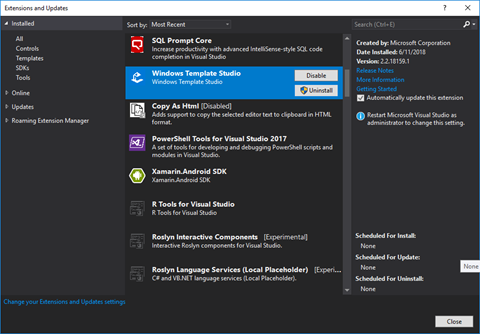
You can install the latest version of Windows Template Studio from the Visual Studio Marketplace or in Visual Studio's extension manager.

wts22-00-extension

Let's walk through the new project creation process with Windows Template Studio in Visual Studio 2017. Start with File-->New Project.

wts22-01-newprojwindow

Select the Windows Template Studio (Universal Windows) project type, give your project a name and click OK. Next you'll start with the project wizard.

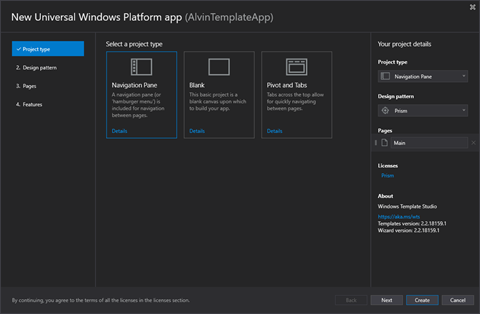
wts22-02-projtype

Start the wizard by choosing your project type.

  • Navigation Pane
  • Blank
  • Pivot and Tabs

I'm going to select the Navigation Pane type, which gives you a familiar left navigation area with a hamburger menu. Select Next to move on to Design Pattern.

wts22-03-designpattern

Choose your project's design pattern/package.

  • Code Behind
  • MVVM Light
  • MVVM Basic
  • Caliburn.Micro
  • Prism

I usually choose MVVM Light for my sample applications and other simple projects. Today I am going to select Prism to see what is generated by Windows Template Studio for this pattern.

Click Next to move on to selecting what types of pages to include in your application.

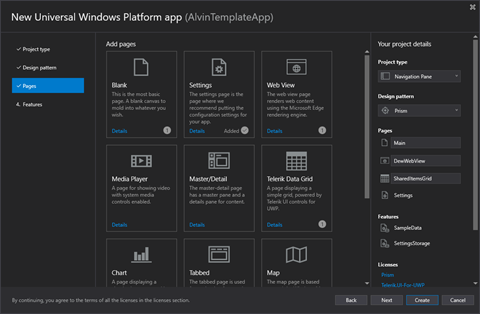
wts22-04-pages1

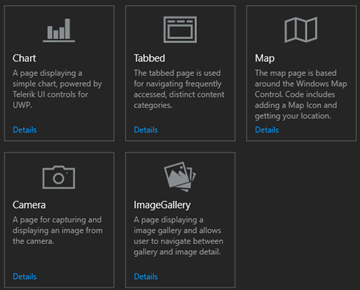
wts22-05-pages2

There are eleven types of pages from which to choose. Select the ones to be included in your project.

  • Blank
  • Settings
  • Web View
  • Media Player
  • Master/Detail
  • Telerik Data Grid
  • Chart
  • Tabbed
  • Map
  • Camera
  • Image Gallery

In addition to the default Main page selected, I've chosen to add a Web View named DewWebViewPage, a Settings page, and a Telerik Grid Page named SharedItemsGridPage.

Click Next again and we'll finish up by selecting some optional features to add to the app.

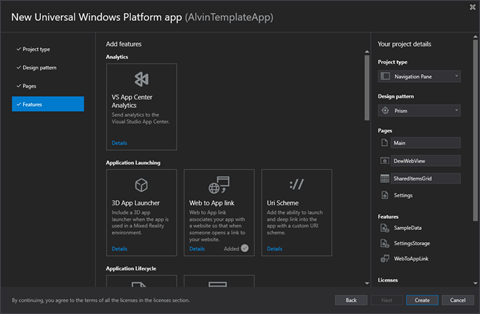
wts22-06-features1

wts22-07-features2

wts22-08-features3

wts22-09-features4

wts22-10-features5

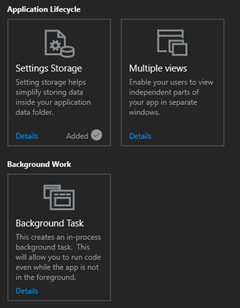
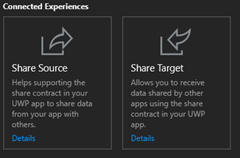
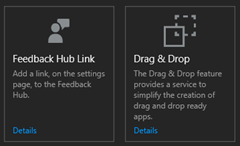
Version 2.2 now has 17 features to select for your app. Pick the ones that best suit your application's needs and feature set and click Finish to generate your project.

Now that the project has been created, you should see the default UWP welcome screen with some helpful links and your Solution Explorer. I'm going to start by taking a look at what NuGet packages were added for my project.

wts22-11-packages

Based on my wizard selections, I have a handful of packages referenced by my project, including those for Prism.Unity and Telerik.UI.UWP. Your result will vary based on the pattern, pages and features selected for your project.

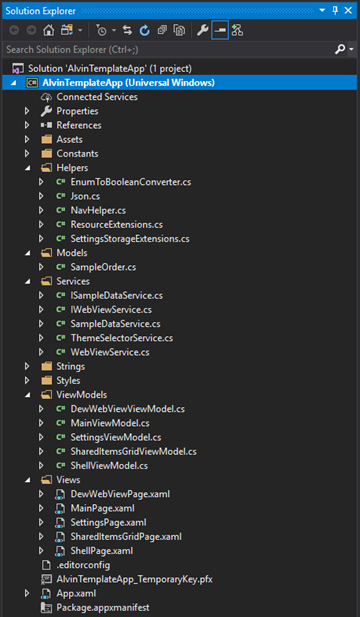
Next, let's expand a few of the project folders to examine the files created for the project.

wts22-12-solution

You should see a View and corresponding ViewModel for each of the Pages you selected for your app, assuming you did not select the Code Behind pattern. In that case, there will be no ViewModel classes.

The Services and Helpers will also vary from those above based on your feature selections.

In my case, there is a SampleOrder in the Models folder for use with the Data Grid. This will be changed to mirror the actual model to be used in the application's grid. The SampleDataService and its corresponding interface will be used to populate the grid. The WebView also has a service and a service interface for testability.

Run the app and try it out. All of the base navigation functionality is there and works great.

The Main Page

wts22-13-run

The WebView

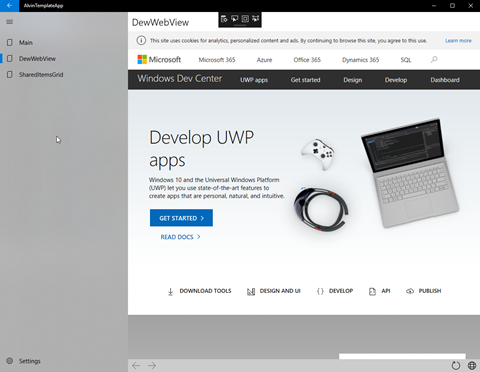
wts22-14-runwebview

The Data Grid

wts22-15-rungrid

The Settings… let's change to the Dark Theme while we're in here.

wts22-16-runsettings

That's it for the basics. Stay tuned for the next part where we will examine some of the code files and make some tweaks to make it fit your application's requirements.


Happy coding!

Wednesday, December 27, 2017

UWP Tip #13 - 2017 Wrap-Up, Free Resources for #UWP Developers

Intro

With 2017 nearing an end, I wanted to share some of the UWP resources that I have used or evaluated this year. These are all either completely free or have a free version for personal/community use.

Resources

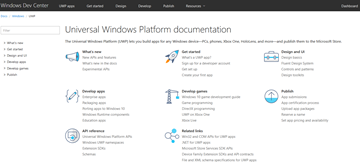
Universal Windows Platform Documentation - Get tips, tutorials for getting started, design guidance, the API reference and lots more on the Microsoft Docs Windows Dev Center.

uwp-resources1

Visual Studio Dev Essentials - A Dev Essentials subscription is free for developers' personal/community use. Get Azure credits, VS Teams Services Basic level benefits, VS Community Edition, a LinkedIn Learning 3-month subscription and a ton of other benefits. After you review all the great resources on this blog post, go here first and see what else Dev Essentials has to offer.

uwp-resources2

UWP Community Toolkit - If you follow my blog, you are well acquainted with the UWP Community Toolkit. This ever-growing collection of free, open-source controls, extensions and helpers is an essential part of every UWP developer's toolbox.

Windows Template Studio - Another essential tool from Microsoft is the Windows Template Studio. This is a Visual Studio 2017 extension that provides a wizard-style experience for bootstrapping your next UWP project. Get a head-start by selecting the pages, features, frameworks and extensions you want to use in your application.

uwp-resources3

Microsoft App Center - Build, test and distribute your Windows apps built with the Xamarin SDK.

Microsoft HockeyApp - Mobile DevOps for your apps. Get app distribution, crash reporting, metrics and track user feedback. Now free for all developers in 2018.

Microsoft Dev Center - Your hub for Microsoft Store app submissions. Submit apps to the Store, monetize your apps, create promo code, run ad campaigns to attract more users, and review your user reviews and feedback.

Progress Telerik UI for Universal Windows Platform - Offering both Open-Source and Commercial license options, Telerik's UWP control suite offers over 20 controls for app developers. Get rich controls such as Map, AutoCompleteBox, DataForm, Gauge, BulletGraph and more.

uwp-resources4

Syncfusion Essential Studio for UWP - Syncfusion also has a UWP control suite with Commercial and free Community license options. Syncfusion's Community licensing extends across all of their product offerings (over 800 components). The UWP suite includes over 60 components free for personal or community use.

uwp-resources5

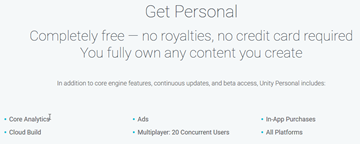
Unity Personal - Do you want to build games for the Windows platform? Get started with Unity's Personal edition which is free for beginners, students and hobbyists.

uwp-resources6

Wrap Up

Go check out some of these resources today and make the most of your time and money in 2018! Happy UWP app building!


Sunday, July 9, 2017

UWP Tip #2 - Windows Template Studio - Examining the Project

Introduction

In Tip #1, I created a new UWP project with a template from Windows Template Studio v1.1. The app is a Navigation Pane style project that uses MVVMLight and contains Web Views to display three different websites.

Let's take a look at a few aspects of the generated project.

NuGet Packages

Besides the basic UWP NuGet package, three other packages were added to my project when it was created.

Views

Views were created for the application's shell, the main page which is generated without any content, and my three Web Views.
  • ShellPage.xaml
  • MainPage.xaml
  • MorningDewPage.xaml
  • UWPTipsPage.xaml
  • WPFTipsPage.xaml
The ShellPage contains the Hamburger menu & Navigation Tree on the left side and the content panel on the right side to host each of other views in the project.

Each web view contains some style code for in the Page.Resources for styling the browser buttons. If you have multiple web views, this XAML could be centralized and reused across your pages. There is also some code for handling the loading behaviors, visibility, and the WebView (Windows.UI.Xaml.Controls.WebView) itself.

The MainPage is essentially empty with the exception of some Xaml to handle the VisualStates. I added a couple of TextBlocks with a welcome message and some information about navigating to the other pages.

ViewModels

There are ViewModels corresponding to each view listed above. There is another for ShellNavigationItem. This facilitates handling multiple pages in the navigation app without hard-coding them in the Shell's view somewhere. There is also a ViewModelLocator class, which will be familiar to anyone who has used MVVMLight. This answer on StackOverflow does a great job of explaining its purpose.

The ShellViewModel uses the ShellNavigationItem and a NavigationServiceEx to switch between the views of its main content panel.
private void Navigate(object item)
{
    var navigationItem = item as ShellNavigationItem;
    if (navigationItem != null)
    {
        NavigationService.Navigate(navigationItem.ViewModelName);
    }
}
Most of the code in the ViewModels for each web view is dedicated to handling. I would recommend refactoring most of this code out to a common base class if you are going to be working with more than one or two web views in a project. Much of the logic is centered around handling navigation between websites and web pages within the WebView control: browsing forward/back, retry, refresh, etc.

Services and Helpers

There are two service classes in the project, ActivationService and NavigationServiceEx. Let's start with the NavigationServiceEx used by the Shell. Here's the class diagram of this service.


It contains all you need to browse between your child views, including browser-style back/forward functionality.

The ActivationService encapsulates our app's activation behavior and its back stack in Windows, working with the NavigationServiceEx for this.


Wrap-Up

The project I generated with Windows Template Studio, created a great starting point for application that can be used to navigate a few different websites. If you create something similar, I would recommend some refactoring to reduce code duplication between Views and ViewModels of the same type. This will lead to much greater maintainability moving forward. Otherwise, it's a really solid way to get started on your next project.

Happy coding!